 English



VIISAN VZ5W 4K Wireless Document Camera for Classrooms
VIISAN VZ5W is a 4K Wi-Fi document camera designed for classrooms, hybrid learning, remote teaching, and professional presentations. With Wi-Fi Direct, 30X digital zoom, A3 capture, and VisualCam software, it helps teachers present physical materials with clarity and freedom.
Bring real materials into every lesson.
The VIISAN VZ5W brings books, handwriting, and physical objects into a shared live view. Use it for classroom demonstrations, student explanations, and hybrid lessons, with Wi-Fi for flexible placement and HDMI or USB for compatible classroom setups.
- Product
- VIISAN VZ5W wireless document camera / visualizer
- Classroom materials
- Books, worksheets, handwriting, physical objects, and A3 materials
- Image and zoom
- 4K Output; up to 30X total zoom
- Connections
- Wi-Fi / HDMI / USB; choose a mode for the intended classroom setup
- Teaching software
- VisualCam: annotation, split-screen comparison, picture-in-picture recording, and whiteboard tools; features depend on version and platform
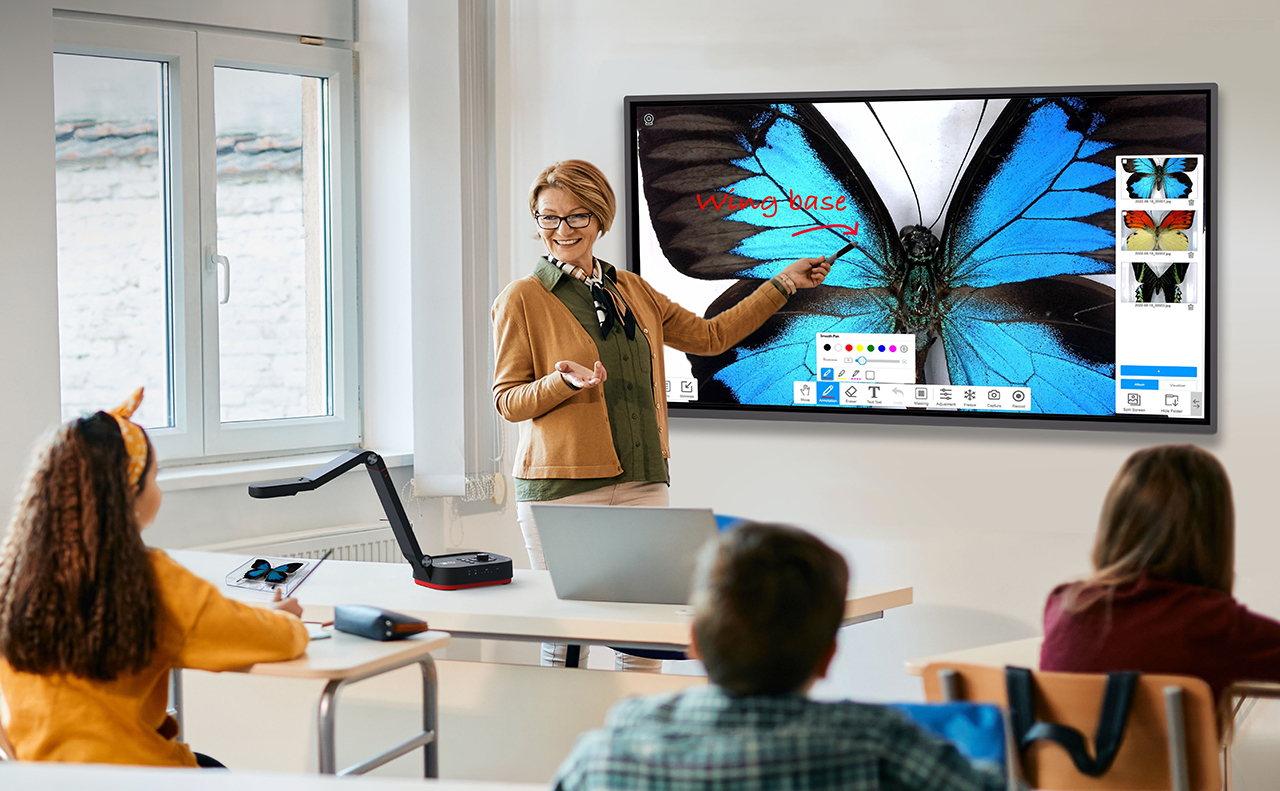
Bring Your Teaching to Life — Wirelessly!

4K@30fps
Output

16-Megapixel
Output

30X Total
Zoom

Large Format
Shooting Area

Dual Band
Wi-Fi

Built-in
Battery

Intuitive
Control Buttons

Interactive
Software
Instant Wi-Fi Direct Peer-to-Peer Connection
With Peer-to-Peer Wi-Fi Direct technology, the VZ5W connects directly to your computer without using your existing school or office network. Wireless performance and simultaneous internet access depend on the computer, wireless adapter, connection mode, and school network settings. Test the setup before a hybrid lesson.

4K Detail for Demonstrations. Up to 30X Zoom at Full HD.
Show text, specimens, and objects in 4K. Zoom is available up to 15X at 4K and up to 30X at 1080p or 720p. Digital zoom enlarges the image; the detail you see also depends on lighting, focus, and output resolution.
It is ideal for science demonstrations, classroom explanation, training sessions, and detailed visual presentations.

Large A3 Shooting Area
The adjustable mechanical arm allows full A3 document capture. Display books, documents, worksheets, experiments, and physical objects clearly from multiple angles.


Highly Flexible Mechanical Arm
The fully adjustable mechanical arm expands, collapses, and rotates to help users find the best viewing angle for documents, objects, and live demonstrations.
This makes the VZ5W suitable for close-up explanation, overhead teaching, and flexible classroom setups.
Designed for classrooms, remote learning, and live demonstrations.
VZ5W helps teachers and presenters share physical content naturally, whether students are in the room or joining remotely.
Distance Learning Ready
UVC/UAC compliant with plug-and-play USB connectivity and a built-in microphone, the VZ5W works with Zoom, Microsoft Teams, Google Meet, Cisco Webex, and GoToMeeting for hybrid and remote education.


Convenient Physical Control Buttons
Integrated control buttons allow you to freeze video, rotate images, and zoom in or out instantly during live demonstrations.
Teachers can adjust the view directly from the device without interrupting the lesson flow.

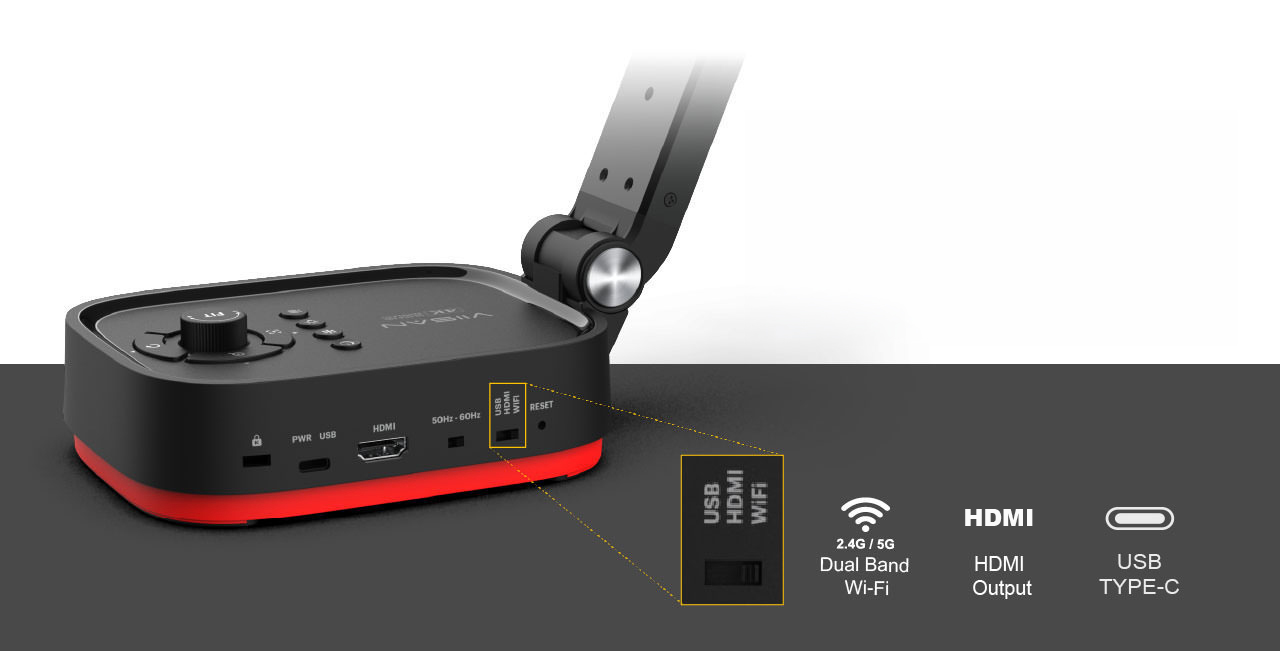
Multiple Connectivity
Supports Wi-Fi, HDMI, and USB connectivity. Easily connect to an interactive flat panel display (IFPD), computer, projector, or other compatible display devices for flexible teaching and presentations.
Interactive VisualCam Software for More Engaging Lessons
Enhance lessons with VisualCam software. It includes annotation tools, split-screen comparison, picture-in-picture recording, and an interactive whiteboard for more engaging classroom experiences.
Learn More About VisualCam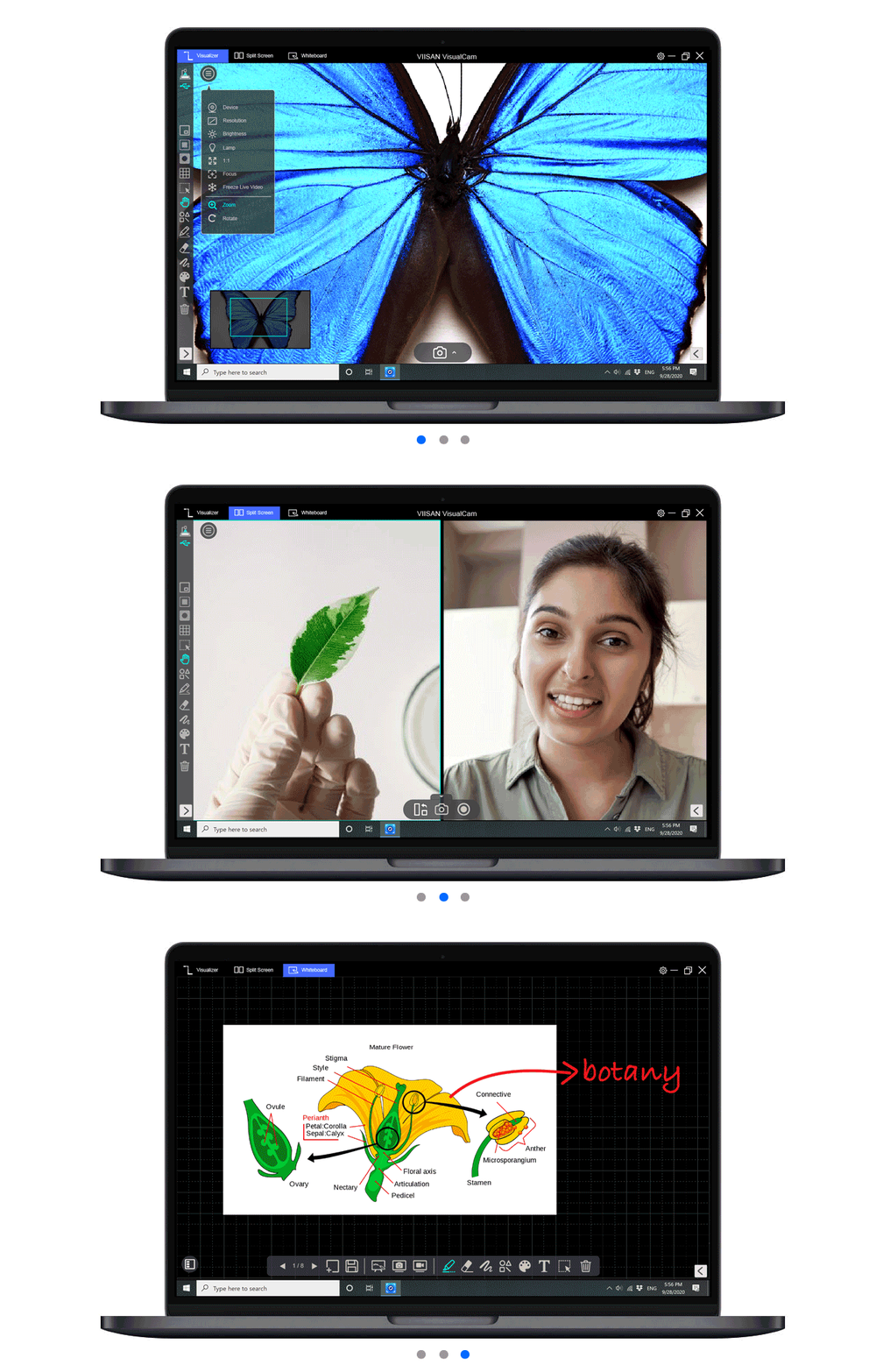
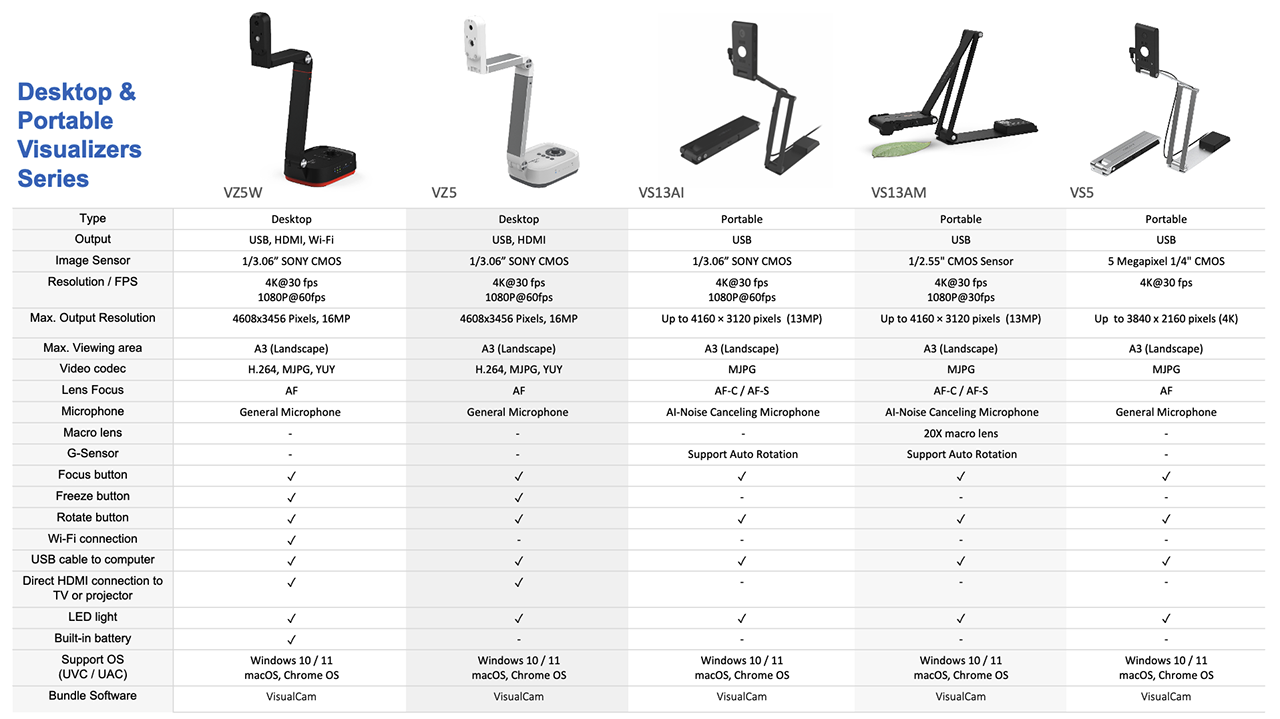
Find the Right Visualizer for Your Classroom or Remote Learning
Explore VIISAN document cameras and visualizer solutions designed for teaching, demonstrations, hybrid learning, and professional presentation workflows.
A practical starting point for your next lesson.
These illustrative lesson scenarios show ways to use the VZ5W. They are teaching suggestions, not reports of customer deployments or measured learning outcomes.
Math: make each step visible
Scenario: A class is comparing two ways to solve a fraction problem.
Try it: Frame the worksheet and fraction pieces. Model one method live, freeze the completed step, and ask a student to explain a second method.
Teaching purpose: Use the shared view to discuss where the strategies agree and where an error begins.
Literacy: model close reading
Scenario: Students are learning to support an answer with evidence from a printed text.
Try it: Display the passage and use VisualCam annotations to mark the relevant words. Invite students to explain why each detail supports their answer.
Teaching purpose: Keep the text and reasoning together in the same view.
Science: observe before explaining
Scenario: Small groups are examining the structure of a leaf or a simple circuit.
Try it: Frame the object, adjust lighting and focus, and enlarge one feature. Ask students to predict what they will see before discussing the observation.
Teaching purpose: Give the whole class a shared reference for an evidence-based discussion.
Student work: compare and revise
Scenario: Students have produced different solutions or drafts.
Try it: Remove names and prepare two examples in VisualCam split-screen. Ask students to identify a strength and suggest one specific revision.
Teaching purpose: Focus feedback on the visible work and the reasoning behind it.
Hybrid teaching: share the same material
Scenario: Some students are in the room and others are joining online.
Try it: Connect by USB, open VisualCam, and share its window in the meeting app. Check the remote view, then teach from the same worksheet used in class.
Teaching purpose: Bring physical learning materials into the shared online lesson.
Lesson review: record one explanation
Scenario: A teacher wants students to revisit a difficult step after class.
Try it: Record a short demonstration with VisualCam, check the audio and image, and upload the reviewed clip to the school learning platform.
Teaching purpose: Create a focused resource that students can pause and replay.
Good questions.
Clear answers.
For the lessons you plan.
And the moments you don’t.
Made for your classroom
Everyday ways to bring learning into view.
What is the VIISAN VZ5W document camera used for in education?
The VIISAN VZ5W is a 4K wireless document camera, also called a visualizer, for showing books, handwriting, worksheets, and physical objects live. Teachers can model a process, discuss student work, or share a demonstration with a classroom or remote learners.
How can I use the VZ5W to teach math step by step?
Place a worksheet or manipulatives under the camera and frame the entire working area. Write one step at a time, pause for students to explain their reasoning, and use the freeze control to keep a worked example on screen while you prepare the next problem.
How can I use a document camera for reading and writing lessons?
Position a book or student paragraph under the VZ5W. Display the passage, model how to identify evidence or revise a sentence, and use VisualCam annotation tools to highlight the section being discussed. Remove student names before sharing or recording work.
Can I show science specimens and STEM demonstrations?
Yes. Use the adjustable arm to frame a specimen, model, or small circuit, then adjust focus and zoom so students can examine the relevant detail. Ask students to predict, observe, and explain what they see. Keep the camera away from heat, liquids, and moving experiment parts.
How can students compare two solutions or pieces of work?
Use VisualCam split-screen comparison to discuss two examples, such as alternative math strategies or an original and revised paragraph. Prepare the examples in the installed software, ask students to identify a difference, and annotate the evidence. Check available tools in your software version before class.
Connected to your lesson
From the classroom display to students at home.
How do I use the VZ5W with Zoom, Microsoft Teams, or Google Meet?
For a straightforward computer-based setup, connect the VZ5W by USB and select it as the camera in your meeting application. To share VisualCam annotations or comparisons, open VisualCam and share its window instead. Grant camera and microphone permissions, close other apps using the camera, and check the remote view before teaching.
Does Wi-Fi Direct require the school wireless network?
Wi-Fi Direct lets the VZ5W connect directly to a compatible computer without routing the camera connection through the school wireless network. An online meeting still needs internet access. Confirm that your computer can maintain internet access with the intended wireless setup; USB is an alternative for hybrid lessons.
Can I connect the VZ5W to an interactive display or projector?
The VZ5W provides HDMI, USB, and Wi-Fi connection options. Use HDMI with a compatible display or projector input to show the camera image. For VisualCam tools, connect through a supported computer and share that computer display. Direct USB use with an interactive panel depends on the panel operating system and camera application.
Can I use 30X zoom while displaying 4K video?
The published VZ5W specifications list up to 15X zoom at 4K and up to 30X at 1080p or 720p. Choose 4K when image detail is the priority, or a supported lower resolution when you need the larger zoom range. Digital zoom does not add new optical detail.
Can the VZ5W show an A3 worksheet or an open book?
Yes. The VZ5W supports an A3 shooting area. Raise and position the mechanical arm to fit the page, flatten the material where practical, and check focus and lighting before zooming into a smaller section.
Can I record a short lesson for review or a flipped classroom?
Use VisualCam recording tools to capture a focused explanation, such as one worked math example or a book passage discussion. Review the recording, then publish it through your school-approved learning platform. Recording features and available layouts depend on the installed VisualCam version.
Ready when you are
A little preparation. A smoother lesson.
What should I check if the picture is blurry, dark, or mirrored?
Clean the lens, improve lighting, reduce glare, and refocus after moving the material or camera arm. Reduce digital zoom if fine text looks soft. If text appears reversed, check the camera and meeting application mirror settings, and confirm what a remote participant actually sees.
What if my computer or meeting app cannot find the camera?
Check power and the selected connection mode, reconnect the USB data cable, and try a direct computer USB port. Allow camera access in the operating system and browser or meeting app, close competing camera applications, and select the VZ5W again. If the issue continues, record the operating system, software version, connection mode, and exact error for support.
What should school IT teams test before classroom deployment?
Test the intended computer operating system, USB and HDMI connections, wireless mode, camera permissions, installed VisualCam version, display resolution, and meeting application. Run a short real lesson with handwriting and audio. Confirm software features on the actual school device rather than assuming identical support across all platforms.
Teach wirelessly. Present clearly. Collaborate naturally.
With 4K wireless capture, Wi-Fi Direct, A3 shooting area, flexible positioning, and VisualCam software, VZ5W helps make classroom demonstrations and remote learning more visual and interactive.
