 English


The classroom connection guide
USB vs. HDMI vs. Wireless Document Cameras
Which connection is right for your classroom?
Compare classroom setups, understand the trade-offs, and choose a document camera that fits the way you teach.
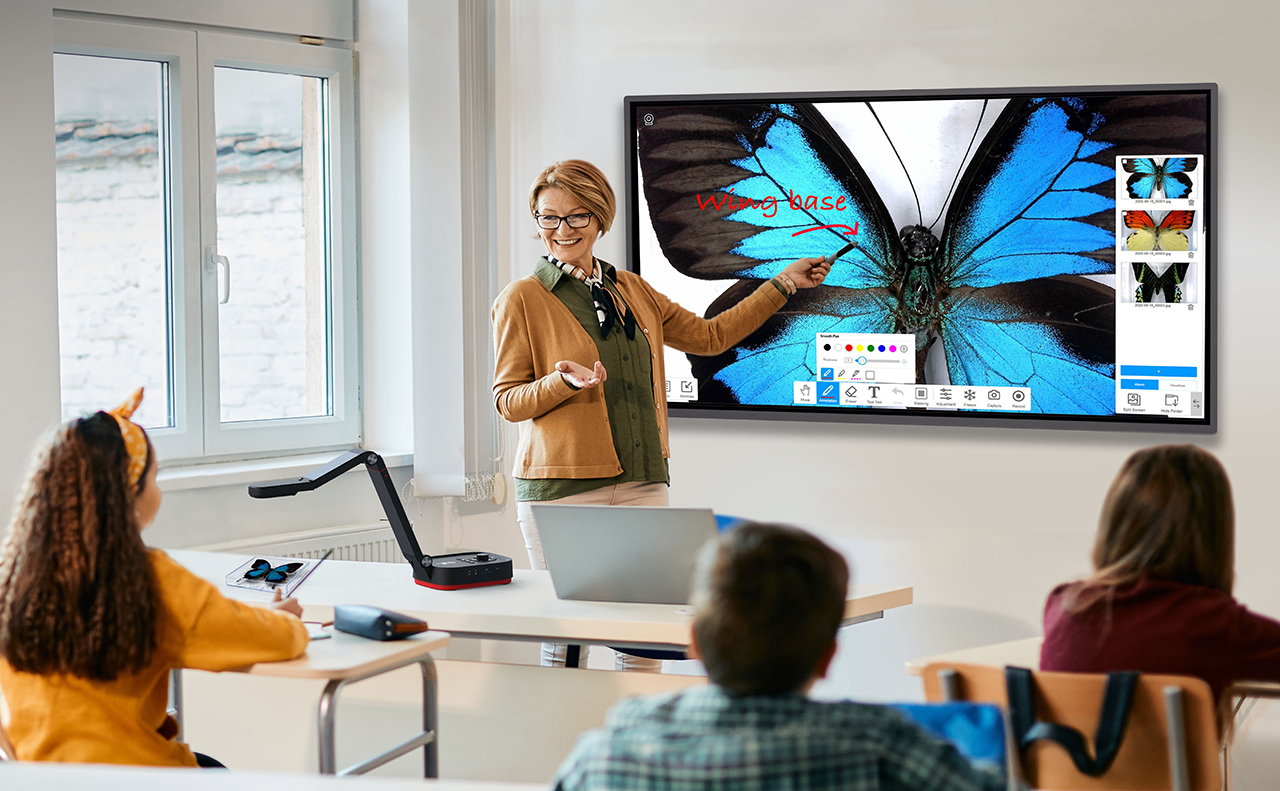
USB vs. HDMI vs. wireless: quick comparison
Choose USB for lessons built around a computer. Choose HDMI to go straight to a classroom display. Choose wireless when your teaching needs room to move.
A document camera, also called a visualizer, turns books, handwritten notes, and everyday objects into something everyone can see. The right connection helps that happen with less interruption.
Before comparing specifications, think about a typical lesson. Where do you teach from? Which screen do students watch? Do you need to record, annotate, or share online? Start there.
| Connection | Best for | Before you choose |
|---|---|---|
| USB | Computer-based lessons and online sharing | Check your computer, application, and available video modes. |
| HDMI | Live presentation directly on a display | Confirm a compatible HDMI input, video format, and camera power. |
| Wi-FiWireless | Moving between desks and demonstration areas | Verify the receiving app or device, power, and classroom connection. |
On smaller screens, scroll the table sideways to compare all columns.
When should you choose a USB document camera?
Choose USB when your computer is already part of every lesson. A compatible application lets you bring a live camera view into the same environment as your slides, websites, and digital resources.
In a math lesson, you might move from a presentation to a handwritten solution, then back to the next slide. For remote teaching, you can share that same close-up view with students joining online, using supported software.
Computer-based setup
USB connection
Bring the camera view into your lesson on a computer
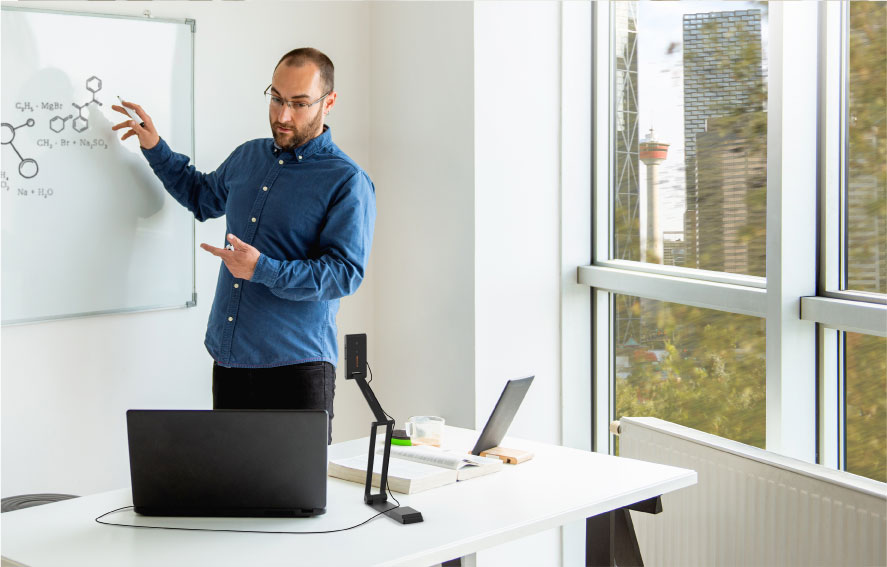
Recording, annotation, and image capture depend on the application. Before buying, confirm support for your operating system and the tools you actually use. UVC compatibility can help a computer recognize the camera, but it does not guarantee every feature on every platform.
When should you choose an HDMI document camera?
A compatible HDMI document camera can present directly on a projector or classroom display, without a computer. Place a book, a specimen, or a worked example under the lens, and bring it into view.
It is a straightforward approach for lessons centered on live demonstration. The camera still needs power, and the display must support its output format.
Direct display connection
HDMI connection
Show the live image without a computer

Check recording and annotation separately: an HDMI connection carries the picture, but those teaching tools depend on the camera, display, or additional equipment.
Connecting to a laptop? Most laptop HDMI ports are outputs. Receiving an HDMI camera feed generally requires compatible capture hardware.
When should you choose a wireless document camera?
Choose wireless when the camera needs to move with the lesson. Bring a student’s project into the discussion, demonstrate an art technique at another desk, or move between small-group activities.
The VIISAN VZ5W offers two Wi-Fi modes: AP for a direct connection and STA for an existing network. Here’s how each setup works.
Direct connection
Wi-Fi AP mode
Access Point · Connect to the camera
Shared network
Wi-Fi STA mode
Station · Join your existing Wi-Fi
Wi-Fi is the connection. Internet is a separate service. Local viewing does not inherently require internet access in either mode. Online meetings and cloud services still need an internet connection.

Test it where you will teach. Write under the camera, move an object, and try different positions around the room. Check power requirements, too: wireless video does not always mean battery-powered operation.
Can a document camera connect to an interactive display?
Often, yes. The key is choosing a connection the display supports. HDMI is a common route for direct video. USB can work when the display supports the camera’s video format and has an app to show it. Another option is to connect the camera to a computer, then send the computer’s view to the display.
A USB port alone does not confirm camera compatibility. If you want to write over the live image, ask for a demonstration using your exact setup. Displaying the picture and annotating over it are separate capabilities.
Do you need a 4K document camera?
4K can help with small print and detailed diagrams. Readability depends on the whole setup. Focus, lighting, camera position, and the receiving screen all affect what students see. The resolution available can also change with the connection or application.
Try an open textbook, a handwritten calculation, and a small object. Check the view from the back of the room. For online lessons, check it on a participant’s device. Your everyday materials are the most useful test.
Which VIISAN document camera fits your classroom?
Start with the way you teach, then explore a camera with the connections to match.

VZ5W
Wi-Fi · USB-C · HDMI
Freedom to teach around the room, with AP and STA wireless modes, USB-C and HDMI connections, and a built-in rechargeable battery.
Discover VZ5W ↗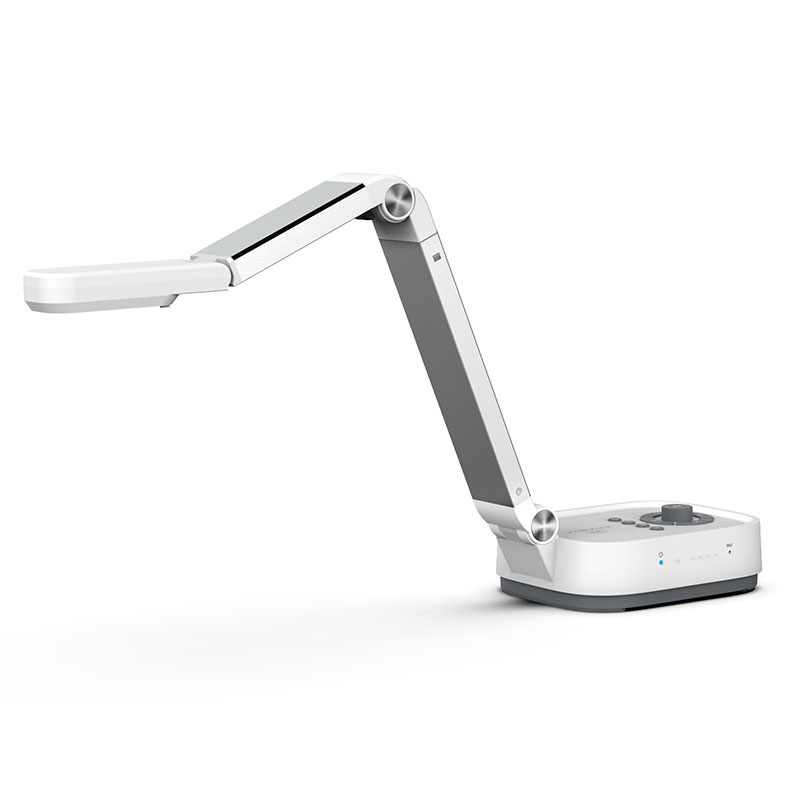
VZ5
USB-C · HDMI
A 4K desktop visualizer for computer-based lessons or direct presentation on a compatible classroom display.
Discover VZ5 ↗
VS13AM
USB-C · 20× macro lens
A portable 4K USB document camera with a detachable 20× macro lens and AI noise cancellation for detailed demonstrations and online teaching.
Discover VS13AM ↗Confirm each model’s software, power, and receiving-device requirements against your classroom equipment.
Document camera buying checklist
A short classroom trial can tell you more than a long specification sheet.
- Connect it. Use your everyday computer or display, including any adapters, receivers, and power supplies.
- Show it. Check small text, handwriting, and objects from the back of the room.
- Teach with it. Try the annotation, recording, or online sharing your lessons need.
- Do it again. Disconnect and reconnect. For wireless models, repeat the trial around the room.
Document camera FAQs
Is USB or HDMI better for a document camera?
USB suits computer-based teaching and online sharing. HDMI suits live presentation directly on a compatible display. A model with both lets you choose the workflow that fits each lesson.
Can a USB document camera connect directly to a projector?
Only if the projector explicitly supports the camera’s USB video format. Otherwise, connect through a compatible computer or use a camera with a suitable HDMI output.
Does a wireless document camera need internet access?
Not for local viewing. The VIISAN VZ5W supports AP mode, which connects your device directly to the camera’s Wi-Fi network, and STA mode, which connects the camera to an existing Wi-Fi network. Neither mode inherently requires internet access for local viewing with compatible software. Online teaching and cloud services still require an internet connection.
Can one document camera offer all three connections?
Yes. Models such as the VIISAN VZ5W support USB, HDMI, and Wi-Fi. Features and video modes can differ between connections; multiple options do not necessarily mean simultaneous output.
Start with your classroom. Choose your connection.
Bring the details into focus.